
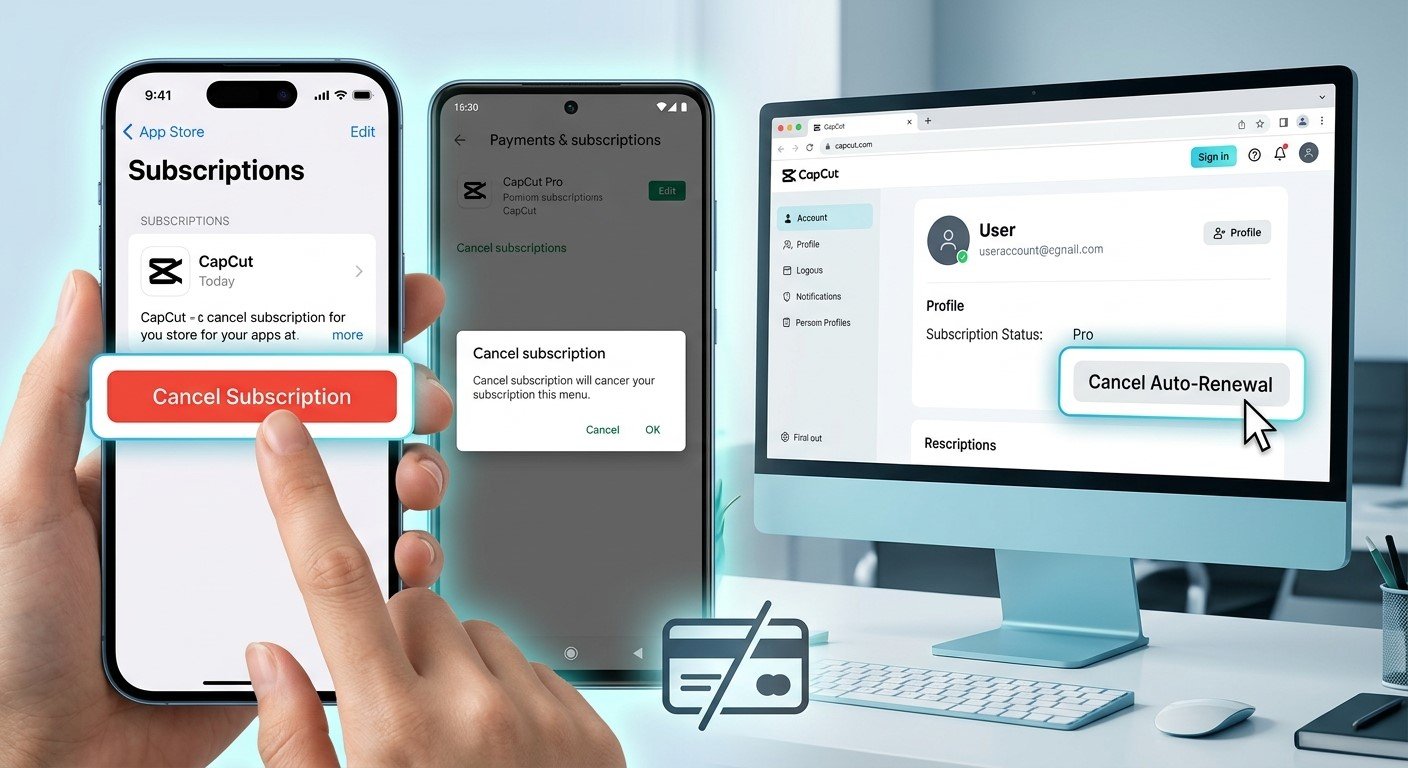
Steps to Cancel Your CapCut Subscription on iPhone, Android & PC [100% Effective]
CapCut has quickly become one of the most widely used video editing apps with all the features available such as easy editing features, preset templates, and advanced AI effects. Though the app comes loaded with a lot of editing features in its free version, the paid version CapCut Pro is favored by some users for the extra benefits provided.
Cancel CapCut Subscription
But when you don’t require those extra features anymore, wish to stop the auto-charges from coming out, or just switch to other editing platforms, it is important to know how you can easily terminate your CapCut membership. Here we explain everything about how to Cancel CapCut Subscription on iOS App Store, Google Play Store, and PC web browser.
Important Things to Know Before You Cancel CapCut Subscription
It is imperative that you should take note of these important facts so as to facilitate the process of cancellation without losing any of your work:
1. Access Valid up to the End of Current Billing Cycle: Cancellation of your subscription prevents auto-renewal. However, you have complete access to CapCut Pro functions until the end of the existing billing cycle.
2. Deletion of the Application Does Not Result in Subscription Cancellation: Uninstallation or deletion of the CapCut application will not automatically result in cancellation of your subscription.
3. Cloud Storage & Pro Assets: If there are any Pro effects/templates used by you in your drafts, they will be restricted after your membership expires.
CapCut Unsubscribe on iPhone (iOS)
If you subscribed for CapCut Pro using your Apple ID in an iPhone/iPad device, your subscription can be cancelled straight away using the billing system from Apple. Here’s what you need to do:
Cancel CapCut Subscription
Step 1: Go to iPhone Settings
1. Launch the Settings app on your iPhone/iPad device.
2. Tap on your Apple ID that appears at the top of the settings menu.
Step 2: Go to Subscriptions
1. Tap on Subscriptions.
2. Then tap on CapCut subscription plan from the list of subscriptions.
Step 3: Turn off Auto Renew
1. Tap on Cancel Subscription (or Cancel Free Trial in case of trial version).
2. Tap Confirm.
How to Unsubscribe from CapCut on Android (Google Play)
If you have subscribed to CapCut Pro via the Google Play Store, unsubscribing will involve going into your Google account options:
Step 1: Go To Google Play Store
1. Go to the Google Play Store app on your Android device.
2. Tap the Profile icon located at the top-right corner of the screen.
Step 2: Tap Payments & Subscriptions
1. Tap on Payments & subscriptions from the drop-down menu.
2. Then tap on Subscriptions.
Step 3: End Your Membership
1. Scroll down until you find CapCut Pro.
2. Tap on Cancel subscription at the bottom of the screen.
3. Select your reason for canceling and tap on Continue.
How to Cancel CapCut Pro Subscription from PC / Web Browser
In case you subscribed to the CapCut Pro plan via the official website (capcut.com) or via the desktop app on Windows/Mac, here is what you have to do:
Cancel CapCut Subscription
1. Open a web browser and access the official website of CapCut.
2. Log into the account that you used for subscribing to the Pro plan.
3. Tap on the Profile Account icon on the top right and then go to Account Settings or Manage Account.
4. Go to the Subscription/Billing tab.
5. Tap Cancel CapCut Subscription.
Conclusion
Subscribing to your favorite apps in a responsible way is the wise step that will allow you to have full control over your monthly spending online. Even though CapCut Pro provides plenty of advanced AI tools, special visual effects, and cloud storage, paying for a membership plan is only worth your money when you really use all these capabilities on a daily basis. No matter whether you want to save your money from additional software costs, find another desktop editor, or cancel your subscription because you completed the project, knowing how to cancel the renewal of your membership plan is a must to avoid any extra charges. Cancel CapCut Subscription
Luckily, as you saw in this detailed guide, cancelling your membership plan in CapCut is fast, clear, and effortless on all popular devices. You can simply disable your CapCut subscription in your Apple ID settings on iOS, Google Play Store subscription management on Android, or in your personal account settings on PC in just a few minutes. Keep in mind that cancelling the subscription prior to its official expiration will let you benefit from the entire period of your paid Pro membership without extra credit card deduction.
When you come back to use CapCut Pro at any other time in the future, you can reactivate your subscription easily and find all of your old preferences and drafts ready. Cancel CapCut Subscription Cancel CapCut Subscription
For more reliable tech tutorials and guides to troubleshooting your smartphone, visit InfoGuru ([https://infoguru.co.uk](https://infoguru.co.uk)).